NavList:
A Community Devoted to the Preservation and Practice of Celestial Navigation and Other Methods of Traditional Wayfinding
Re: Navigation spreadsheet lessons
From: Frank Reed
Date: 2009 Jan 12, 20:06 -0800


From: Frank Reed
Date: 2009 Jan 12, 20:06 -0800
So let's get started.

You've gone to docs.google.com and opened a new spreadsheet. Your browser now
displays a page titled "Unsaved spreadsheet". You see a series of menus:
File, Edit, View, etc. Below that there is a toolbar with a print button,
some edit controls, formatting options, etc. And then, of course, we see the
spreadsheet itself which consists of a table of lettered columns (A,B,C,...)
and numbered rows (1,2,3,...). You can refer to any cell in the table by
letter and number. So the second cell from the left, third row down, is cell
B3. And I should note here that you will see almost exactly the same layout
of menus, toolbars, and spreadsheet cells in any modern spreadsheet package.
If you open up OpenOffice (I use v.3), you will see two more toolbars with
more special functions and formatting options, but otherwise it's just like
the Google Docs spreadsheet.

The spreadsheet in Google Docs opens up by default with a dividing bar in a
location that may be confusing for beginners. So first things first, move it.
It's a grey, horizontal bar that lies between rows 1 and 2 by default. Go to
the far left end where you see diagonal lines in a small rectangle between
the labels for rows 1 and 2. Your mouse will turn into a four-directional
drag cursor. Click and drag that UP. The bar will now be left above row 1
--out of the way for now.

Let's jump right in and do a simple trig calculation. Go to cell A1 and type
in 45 (as in 45 degrees). Most spreadsheets, like most other computer
software, assumes that angles will be converted to pure angles, also known as
"radians", before being passed to any trigonometric functions. Modern
spreadsheets include a simple function that converts any angle to radians. It
is usually RADIANS(x). To use this, go to cell B1 and type =RADIANS(A1). The
"equals" sign in this formula is standard spreadsheet-eze that tells the
spreadsheet you want a formula and not literal text (try typing it without
the equals sign and see what you get). You'll note that the Google Docs
spreadsheet is very clever about this and provides you with the acceptable
function options as you type. First it shows you all functions that start
with "R", then all that start with "RA"... By the time you have type =RAD,
the only option left is =RADIANS. When you're done typing the formula, press
ENTER or move to another cell, by clicking or using the keyboard arrow keys.
The cell will display 0.785398... almost immediately. Note that if you're
doing this in OpenOffice Calc instead, that product defaults to displaying
two digits after the decimal place so it shows 0.79. You can change this, but
all you need to know right now is that the number isn't rounded. It has the
full accuracy value hidden from view. And so that we can get to a
trigonometric result right away, let's enter one more formula. In cell C1,
enter =SIN(B1). And there's that familiar 0.707... (which is in fact the sine
of 45 degrees, equal to the square root of 0.5).

So far we've managed to do something that you could do using a calculator with
a few keystrokes. It's not much benefit. But the key feature of a spreadsheet
that makes it so useful is that the formulas are always present "behind" the
numerical values that we see. Go back to cell A1 and type 50 instead of 45.
The other cells in B1 and C1 update to show the correct values for an angle
of 50 degrees.

Next, cell references are relative (usually). That is, our formula in cell B1
which reads =RADIANS(A1) is actually saying
=RADIANS("the cell one to the left of this cell"). If we copy and paste these
cells to a new location, their formulas will immediately reflect the changed
location.

By the way, where ARE the formulas? All spreadsheets have a field or a "box"
where you can see the formula underlying the currently highlighted cell. In
the Google Docs spreadsheet, that field is down in the lower right. But
there's a way to make it more prominent and more consistent with other
spreadsheets. Go to the "View" menu (up top) and select "Formula Bar". Now
you see a line that says "Formula:" right below the main toolbar above the
spreadsheet table. If you click on cells B1 and/or C1, you can see the
formulas that you typed previously.

Now let's see that "relative" referencing aspect of these formulas at work.
Click on cell B1. Drag through to C1 so that those two cells are highlighted.
Go to "Edit", select "Copy". Then move the cursor down a row to cell B2 and
do "Edit" and "Paste". Pretty cool, huh? We made two ZEROS. Ok, maybe not so
cool. Why are they zero? Click on those cells, B2 and C2, and you will see
that their formulas are slightly different. They read =RADIANS(A2) and
=SIN(B2). They have the same referencing structure as the row above. Each
cell "points" to the cell immediately to its left. So if we want to see
numbers in there that aren't zero, we need a non-zero angle in cell A2. Try
typing any angle there, for example, 60 (that's 60 degrees, by the way). And
sure enough, the formulas update and we see the sine of 60 degrees in column
C2.

One last trick for this lesson. Go back to cell A1 and type a zero there (any
good table of sines will start at zero). Now go to cell A2 and type =A1+1.
And there you have the first two rows of a sine table (for integral degrees;
change that +1 to another value if you want). But this is where things get
really efficient, and rather fun. Select cells A2 through C2 with your mouse.
Copy them. Then click on cell A3 (the next available row) and paste. And
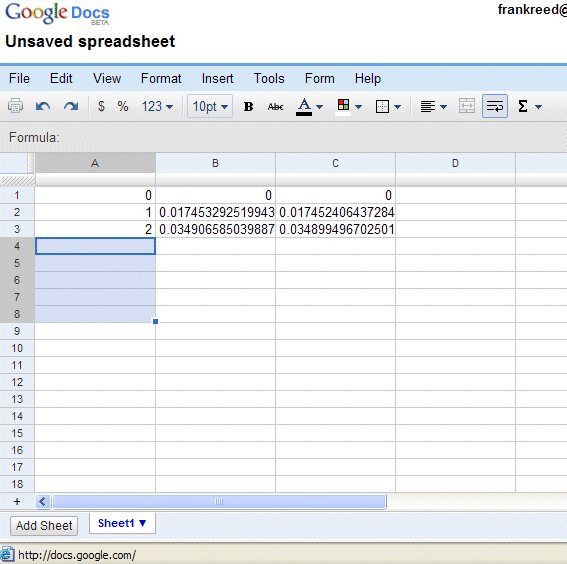
there's row three with hardly any work at all. Now click cell A4 (the
left-most cell in the next empty row) but this time, before you paste, drag
down five rows so that you have selected five cells in column (they should
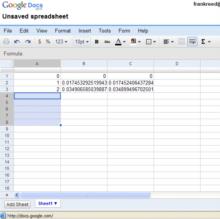
all be highlighted --see attached image). Paste again. Now you have a bunch
of rows in a sine table!

That should be a good start. You should be able to make small tables of
cosines, or logtangents, or haversines or any similar functions easily. Don't
forget to save your work: click that little note in the lower right that says
"Start Autosaving" or go to the "File" menu.

Some tips and tricks tomorrow...

-FER
PS: The attached image shows this spreadsheet (almost) as it looked on my
machine just BEFORE the final "Paste". I was working in IE in Windows but it
should look nearly the same in Safari on a Mac.
--~--~---------~--~----~------------~-------~--~----~
Navigation List archive: www.navlist.net
To post, email NavList@navlist.net
To , email NavList-@navlist.net
-~----------~----~----~----~------~----~------~--~---
File: